Templates Page
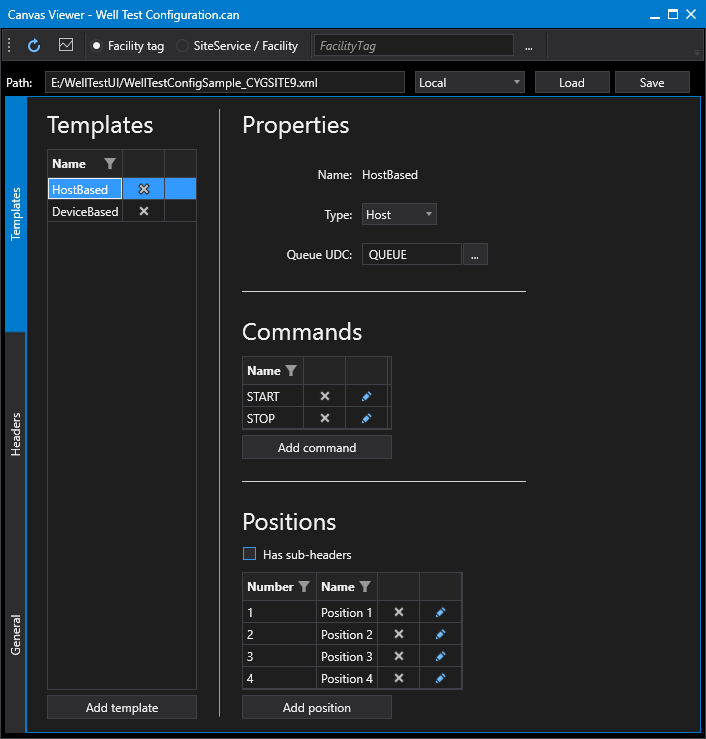
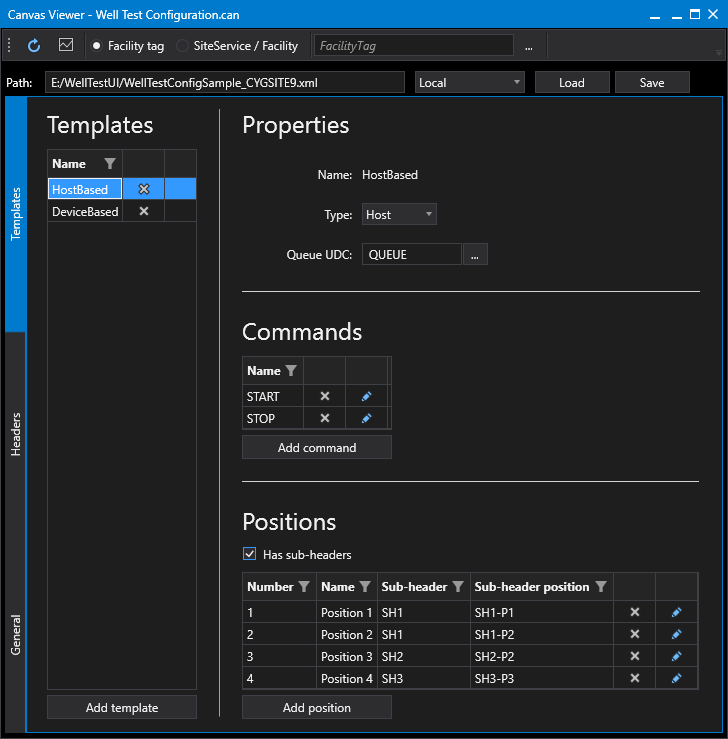
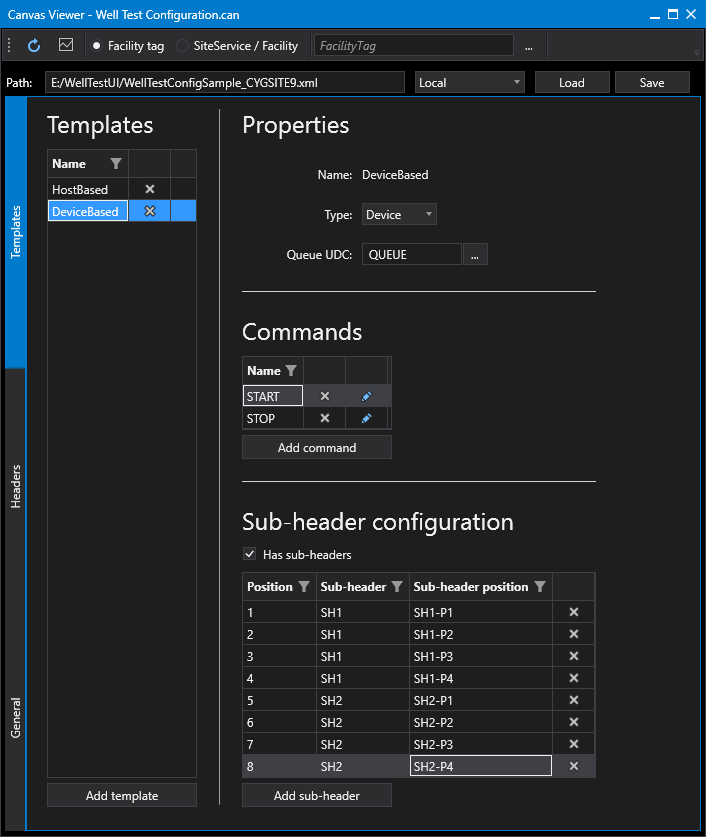
The Templates page of the well test configuration control defines a list of all the defined header templates. The configurations differs depending on the template type:
- A host-based templates contains a list of positions, the commands associated with each position, and all actions associated with each command.
- A device-based templates contains a list of positions, sub-headers, and sub-header positions, the commands associated with each position, and all actions associated with each command.
Commands can also be defined at the header template level. These commands can be referenced by commands at the position level.
The Templates page consists of the following sections:
- Templates
- Properties
- Commands
- Positions (host-based templates)
- Sub-header configuration (device-based templates)
Screen designer tip:
You can hide this page by disabling the Show templates property in the Canvas Design view.
|
Click the thumbnail to see the Templates page: |
Click the thumbnail to see the Templates page: |
Click the thumbnail to see theTemplates page: |
To configure Well Test Header Templates
Perform the following steps to configure the header templates properties, referring to the property definitions below:
- Click the Templates tab on the left side of the screen.
- Click to Add template or click on previously configured template.
- Configure the template Type, and Queue UDC.
- Click to Add command or edit a previously configured command.
- Click to Add action to a command and configure the action's properties. Repeat as necessary and click OK.
- Host Type Templates only. Click to Add position or edit previously configured position.
- Configure the position values and click to Add command or edit a previously configured command.
- Click to Add action to a command and configure the action's properties. Repeat as necessary and click OK.
- Save any changes.
- The Well test Configuration is now ready to execute.
- See Sample Well Test Screens and Scripts for more information.
Templates
The Templates section of the Templates page defines a list of all the defined header templates to be included in each well test operation.
| Property | Description | XML |
|---|---|---|
|
Name |
Specifies the name of the header template. This name is used in the Header configuration. |
|
|
Add template |
|
|
|
Delete template |
|
 to add a new header template.
  to delete a selected header template, as necessary.
Properties
The Properties section of the Templates page defines general header template items.
| Property | Description | XML |
|---|---|---|
|
Name |
Specifies the name of the header template. This name is used in the Header configuration. |
|
|
Type |
Two supported template types are supported:
Note: Device-based templates do not have Positions. |
|
|
Queue UDC |
Specifies the UDC to use for the header queue. This is an override value that can be used if a different UDC is needed for whatever reason. E.g., QUEUE. |
Commands
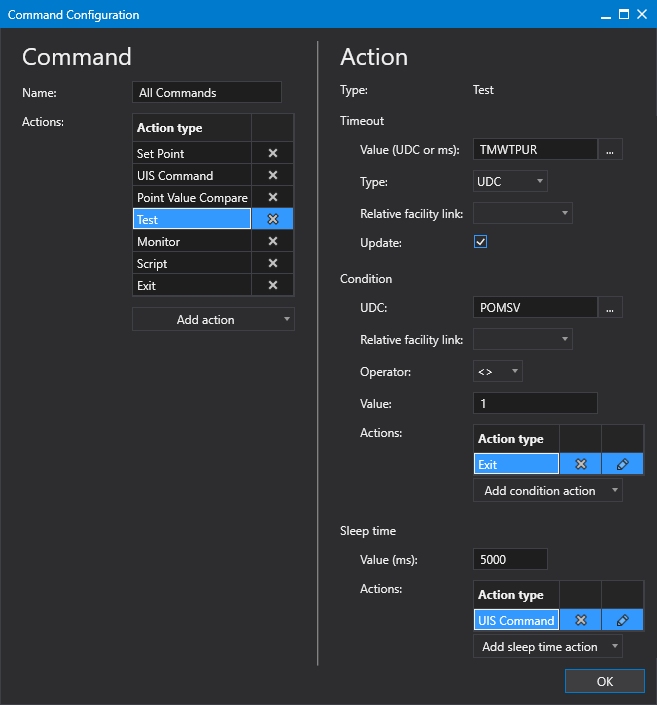
The Properties section of the Templates page defines the commands associated with this header template. The actions defined in each command will be executed when the header queue point is updated with one of these values.
|
Click the thumbnail to see the |
| Property | Description | XML |
|---|---|---|
|
Name |
Specifies the name of the command. The following is a list of reserved type names for each command:
|
|
|
Add command |
To add a command
|
|
|
Edit command |
|
|
|
Delete command |
|
 to add a new command to this header template.
  to edit a selected command. The Command Configuration dialog box will appear.
  to add a new action to this command.
Positions
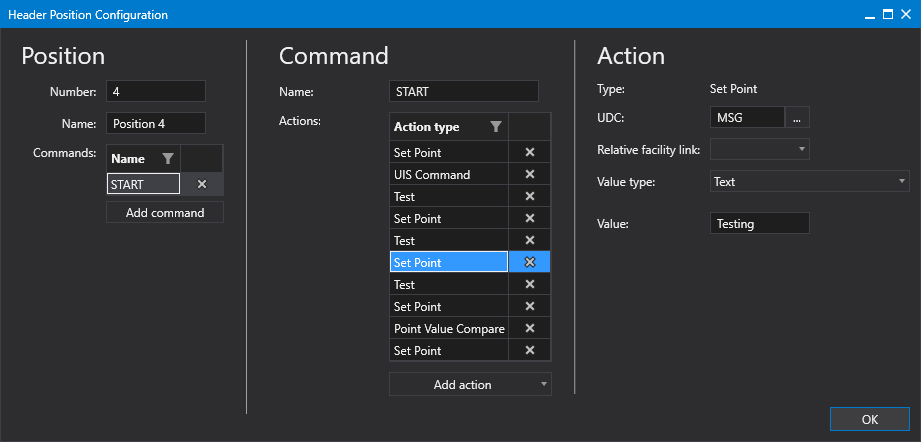
The Positions section of the Templates page defines the positions associated with this header template for host-based templates. See Positions, Headers, and Sub-Headers for more information.
|
Click the thumbnail to see the |
| Property | Description | XML |
|---|---|---|
|
Has sub-headers |
For host-based templates:
Indicates whether the template supports sub-headers, which are the cross-reference between the unique position of the header template to the sub-header and sub-header position where the well is connected. Options include True or False. See Positions, Headers, and Sub-Headers for more information.
|
|
|
Number |
Specifies the number of the position. This is referenced in the Well configuration. Values include 1, 2, 3, …, n. |
|
|
Name |
Specifies a unique identifier (position) on the well testing facility. This integer value is often the value returned by a device at the test facility to indicate which well is being tested or has been tested. The nice name of the position. Values include: Position 1, Position 2, …, Position n. |
|
|
Sub-header |
Specifies a text-based descriptor of the sub-header/header within the well test facility to which the position is connected. This description, in combination with sub-header position, should represent a unique value. |
|
|
Sub-header position |
Specifies a text-based descriptor of the position on the sub-header to which the unique position identifier is connected. |
|
|
Add position |
To add a position
|
|
|
Edit position |
|
|
|
Delete position |
|
 to add a new position to this header template.
Sub-header configuration
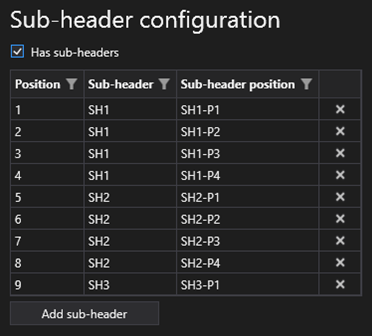
The Sub-header section of the Templates page defines the positions, sub-headers, and sub-header positions associated with this header template for device-based templates. See Positions, Headers, and Sub-Headers for more information.
|
Click the thumbnail to see the |
| Property | Description | XML |
|---|---|---|
|
Has sub-header |
For device-based templates: Indicates whether the template supports sub-headers, which are the cross-reference between the unique position of the header template to the sub-header and sub-header position where the well is connected. Options include True or False. See Positions, Headers, and Sub-Headers for more information.
|
|
|
Position |
Specifies a unique identifier (position) on the well testing facility. This integer value is often the value returned by a device at the test facility to indicate which well is being tested or has been tested. The nice name of the position. Values include: Position 1, Position 2, …, Position n. |
|
|
Sub-header |
Specifies a text-based descriptor of the sub-header/header within the well test facility to which the position is connected. This description, in combination with sub-header position, should represent a unique value. |
|
|
Sub-header position |
Specifies a text-based descriptor of the position on the sub-header to which the unique position identifier is connected. |
|
|
Delete position |
|
More:
 Point Value Compare Action Type


